

Online proctoring does not fail only because students find loopholes. It often fails because everyone meets the system for the first time on exam day. The teacher is trying to monitor twenty sessions. A student cannot log in. Someone's camera will not connect. One student is frozen on the setup screen. Another has an accommodation that was not configured. A good online proctored exam should feel boring in the best way: clear instructions, few surprises, reasonable settings. That does not happen by accident.
Start With the Real Question: Does This Exam Need Proctoring?
Before choosing settings, ask whether the exam truly needs proctoring at all. Some assessments are better handled through projects, presentations, open-book work, oral checks, or frequent low-stakes quizzes. Online proctoring is more defensible when the assessment is high-stakes, time-limited, identity-sensitive, or difficult to replace with an authentic task. Final exams, placement exams, and certification-style assessments may need stronger controls than routine practice quizzes. The first best practice is restraint.
Choose the Least Invasive Settings That Still Fit the Exam
Not every proctored test needs a camera. Not every camera-on exam needs a microphone. Not every exam needs snapshots, ID verification, screen-share monitoring, or strict lockdown settings. Teachers should match the proctoring level to the assessment risk. A useful rule: turn on only what you can justify. If you require camera monitoring, explain why. If students must share a screen or complete an ID check, say so before test day.
Run a Mock Exam Before the Real Exam
A practice run is not optional polish. It is the fire drill. Before a graded exam, give students a short mock test or setup check using the same device, browser, permissions, and test flow they will use later. The content can be simple: one sample question, one submission button, one permissions check. The purpose is to discover problems early. Maybe the exam window is too short. Maybe the instructions are unclear. Maybe a required setting does not work on student devices. The worst time to discover these issues is during the graded exam.
“The best proctoring implementation is not the strictest one. It is the one where the settings fit the exam, students know what to expect, technical failures have a plan, and human judgment stays at the center.”
Put the Proctoring Rules in the Syllabus and Repeat Them
Students should not learn about proctoring requirements from a surprise pop-up. For courses that use online proctoring, include the basic requirements in the syllabus from the beginning, then repeat the details before each proctored exam. The syllabus should name the proctoring tool, which exams will use it, whether camera or microphone may be required, and where students can find support. The pre-exam instructions should be more specific: date, duration, required device and browser, allowed materials, what to do if the internet drops, and who to contact for help.
Build Setup Time Into the Exam Window
Online tests do not begin the moment a student clicks the link. There may be setup screens, consent steps, browser checks, camera permissions, microphone prompts, or system checks. If the exam is scheduled for 60 minutes but students spend the first 10 minutes fighting permissions, the teacher has created a timing problem. Build setup time into the testing plan, and account for students using school-issued devices, Chromebooks, shared home devices, or assistive technology.
Have Real-Time Support Available
A remote exam without live support is a bad idea wearing a neat calendar invite. Students need to know exactly what to do when something goes wrong, not in theory, but in the moment. Before the exam, tell students who to contact, which channel to use, what information to include, and whether they should keep working or pause. Teachers also need a plan for common failures: login problems, lost internet connection, camera or microphone failure, a student being kicked out of the session, or a student needing an approved pause.
Decide How You Will Review Flags Before the Exam Begins
A flag is not a verdict. Tab switching, lost focus, audio activity, a missing face, or a fullscreen exit may indicate misconduct, or a technical problem, accessibility issue, home interruption, approved accommodation, or ordinary confusion. Before the exam, decide: which flags require review? Which can be dismissed quickly? What evidence is needed before contacting a student? How can a student explain what happened? Who makes the final decision? This protects both students and teachers.
Prepare Accommodations Before Test Day
Accommodations should not be handled as emergency exceptions after a student has already been flagged. Some students may need extended time, breaks, assistive technology, adjusted settings, camera exemptions, or an in-person option. Coordinate with the school's disability services office or Section 504 coordinator before the exam. The practical question is not 'Can this student use the default proctoring setup?' The better question is: 'What testing condition gives this student meaningful access while still protecting the exam?'
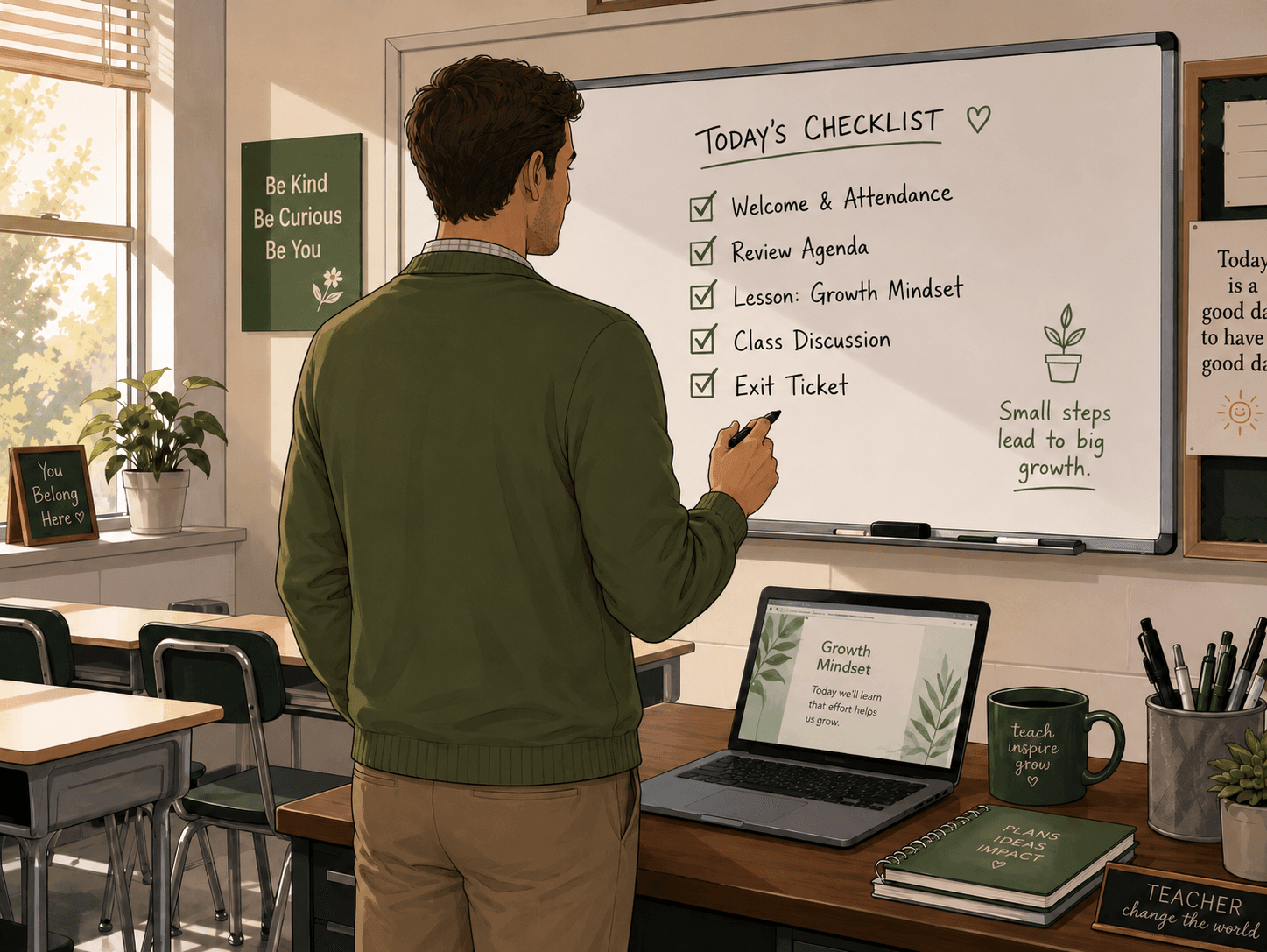
A Pre-Exam Checklist for Teachers
- The exam actually needs proctoring and settings match the stakes
- Students received written notice of the proctoring requirements
- A mock exam or setup check has been completed
- The exam window includes setup time
- Technical support is available during the exam
- Accommodations are configured before the test begins
- An alternative testing option exists for students who need it
- Flags will be reviewed by a person before conclusions are drawn
- The teacher knows how to pause, message, document, and end sessions
This checklist may look like extra work. It is less work than cleaning up a broken exam after the fact. A better implementation starts before the student clicks begin.